How to Add a Persian (Farsi) Keyboard on Android
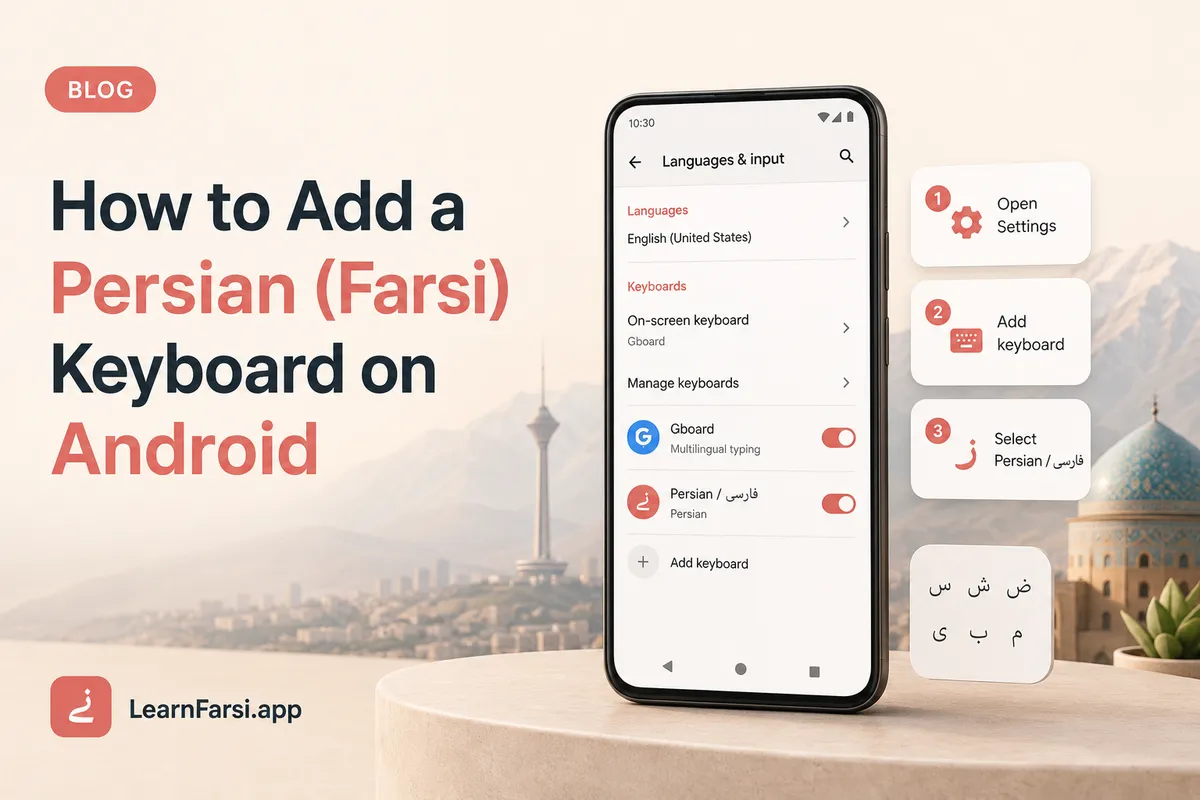
Add a Persian (Farsi) keyboard on Android in minutes. Simple Gboard and Samsung setup, plus phonetic typing and fixes for common Farsi typing issues.

Why Type Farsi on Your Android Phone
Reading Farsi is one thing. Typing it on your phone is where many learners freeze. Without a Persian keyboard on Android, you cannot reply to Persian messages, search in Farsi, or write practice sentences in real script.
The good news is simple. Every Android phone can type Persian. You just switch it on.
Most phones use Gboard, and Samsung phones add their own keyboard too. This guide covers both, plus a phonetic option that turns English letters into Persian as you type.
The Fastest Way: Gboard
Most Android phones already have Gboard, Google's keyboard. Adding Persian takes under a minute.
- Open Settings, then System, then Languages & input (the exact path varies by brand).
- Tap On screen keyboard, then Gboard, then Languages.
- Tap Add keyboard and search Persian.
- Pick a layout and tap Done.
No Gboard on your phone? Install it free from the Play Store. It gives the smoothest Persian typing on Android.
Persian Keyboard on Samsung Galaxy
Samsung phones use the Samsung Keyboard by default, and it supports Persian too.
- Open Settings, then General management, then Samsung Keyboard settings.
- Tap Languages and types, then Manage input languages.
- Find فارسی (Persian) and toggle it on.
Prefer Gboard on your Galaxy? Set it as default under General management, then Keyboard list and default.
Type Farsi Phonetically With Transliteration
Beginners love this option. Gboard has a Persian (transliteration) input. You type roman letters and it converts them to Persian script live.
Type salam and you get سلام. Type merci and you get مرسی. There is no new layout to memorize.
Add it the same way as above, but pick Persian (transliteration) instead of the standard layout. Move to the standard Persian keyboard later, once you know where the letters sit.
Switch Between Keyboards While Typing
To flip between English and Persian mid sentence on Gboard, swipe the space bar left or right. You can also tap the small globe icon near the space bar.
On Samsung Keyboard, tap and hold the globe or space key, then choose your language.
Common Farsi Typing Quirks on Android
A few small things trip up new typists.
Zero width non joiner (ZWNJ). Persian breaks words like میروم into می and روم with an invisible joiner, not a space. On Gboard, hold the space bar for a moment, or long press a letter to find it.
ی vs ي. Persian uses ی with no dots below. Arabic uses ي. Persian keyboards give you the right one, but swap it if you paste Arabic text.
ک vs ك. Same story. Persian uses ک.
Numbers. Persian numerals are ۰۱۲۳۴۵۶۷۸۹. Switch back to English for prices and forms.
Practice Your New Keyboard
Turning the keyboard on is easy. Using it without looking is the real skill.
Start with the letters. Learn the Persian alphabet first, then retype each letter in a notes app until your thumbs remember the spots.
Want the same setup on other devices? See our guide to the Persian keyboard on iPhone and Mac. Once you can type, pair it with the best apps to learn Farsi on Android and some free Farsi lessons to practice every day.
Give it five minutes a day for two weeks. Typing in Farsi will start to feel natural.